Connect Offline AI to LibreChat - Part 2
Last time we set up Ollama with GPT-OSS running completely offline. You had a working AI, but just in the terminal.
Today we're connecting it to LibreChat to get a proper ChatGPT-like interface with advanced features like file uploads, conversation history, and model switching.
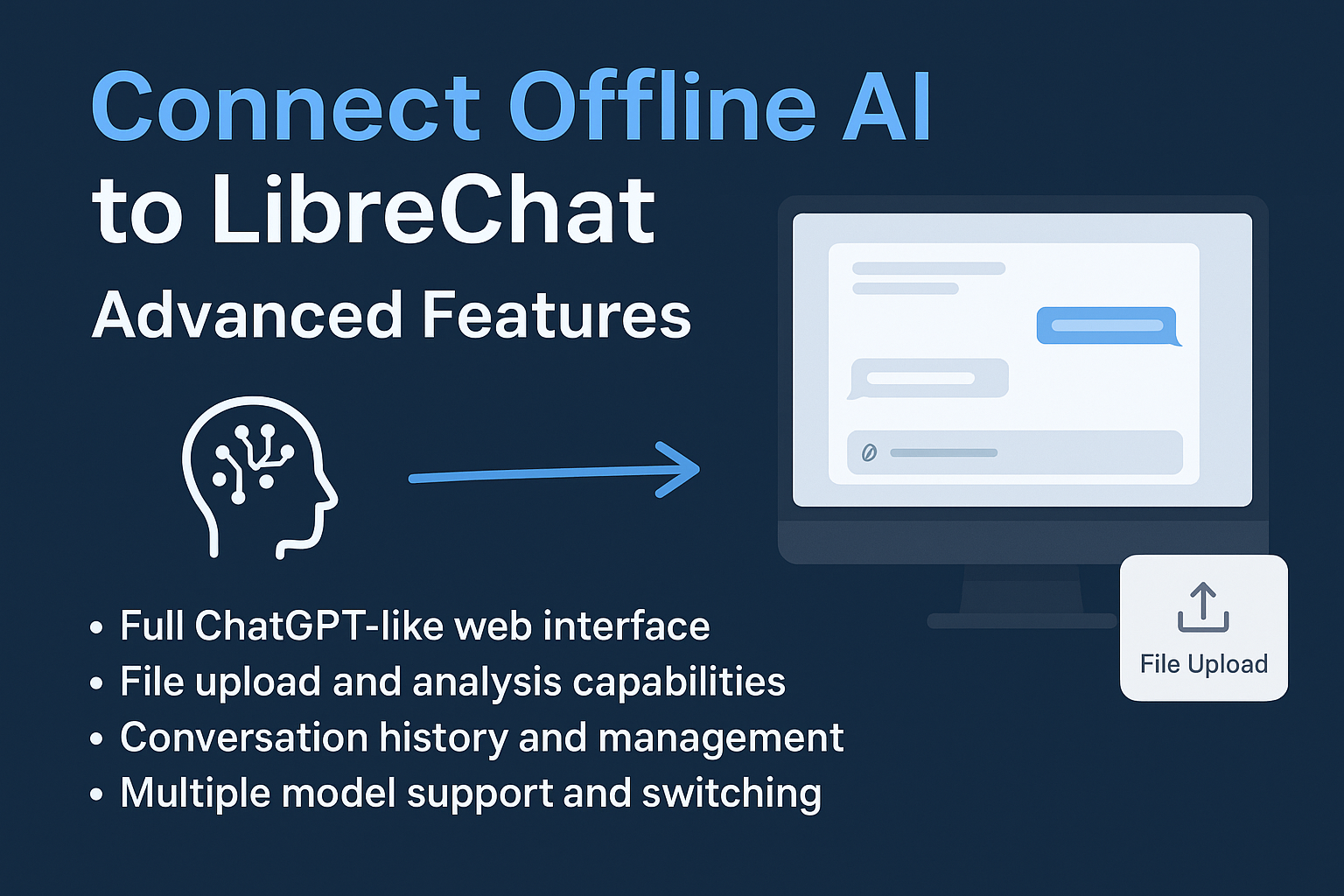
What You'll Build
You'll connect your offline Ollama setup to LibreChat and unlock:
Full ChatGPT-like web interface
Conversation history and management
Multiple model support and switching
Advanced prompt templates and presets
User management and authentication
All running completely offline
This builds on both our previous posts - the LibreChat setup and the Ollama installation.
Before You Start
Make sure you have:
LibreChat running (from our first blog post)
Ollama with GPT-OSS installed (from the previous post)
Both services working independently
If you don't have LibreChat yet, follow our first guide to set it up.
Step 1: Configure LibreChat for Ollama
We need to tell LibreChat about your Ollama models. There are two ways to do this.
Method 1: Simple Environment Variables
In your LibreChat .env file, add these lines:
# Enable Ollama
OLLAMA_BASE_URL=http://localhost:11434

# Specify available models
OLLAMA_MODELS=gpt-oss:20b,llama3.2,qwen3:latest
This is the quick way, but you miss advanced features.
Method 2: Advanced Configuration (Recommended)
Create a librechat.yaml file in your LibreChat directory:
version: 1.2.1
cache: true

endpoints:
  custom:
    - name: "Ollama"
      apiKey: "ollama"
      # use 'host.docker.internal' instead of localhost if running LibreChat in a docker container
      baseURL: "http://host.docker.internal:11434/v1/"
      models:
        default: [
          "gpt-oss:20b",
          "llama3.2",
          "qwen3:latest"
          ]
        # fetching list of models is supported but the `name` field must start
        # with `ollama` (case-insensitive), as it does in this example.
        fetch: true
      titleConvo: true
      titleModel: "current_model"
      summarize: false
      summaryModel: "current_model"
      forcePrompt: false
      modelDisplayLabel: "Ollama"
      addParams:
        temperature: 0.7
        top_p: 0.9
        max_tokens: 2048
      dropParams: ["stop", "user", "frequency_penalty", "presence_penalty"]
This gives you much more control over how the models behave.
Step 2: Advanced Model Configuration
For even better control, create detailed model configs:
version: 1.2.1
cache: true

endpoints:
  custom:
    - name: "GPT-OSS Reasoning"
      apiKey: "ollama"
      baseURL: "http://localhost:11434/v1"
      models:
        default: ["gpt-oss:20b"]
        fetch: false
      titleConvo: true
      titleModel: "gpt-oss:20b"
      modelDisplayLabel: "GPT-OSS (Reasoning)"
      iconURL: "https://ollama.com/public/ollama.png"
      addParams:
        temperature: 0.3  # Lower for more consistent reasoning
        top_p: 0.8
        max_tokens: 4096
      dropParams: ["stop"]

    - name: "Llama Creative"
      apiKey: "ollama"
      baseURL: "http://localhost:11434/v1"
      models:
        default: ["llama3.1"]
        fetch: false
      titleConvo: true
      titleModel: "llama3.1"
      modelDisplayLabel: "Llama 3.1 (Creative)"
      addParams:
        temperature: 0.9  # Higher for more creativity
        top_p: 0.95
        max_tokens: 2048
      dropParams: ["stop"]
Step 3: Enable File Uploads
Add file processing capabilities to your config:
fileConfig:
  endpoints:
    ollama:
      fileLimit: 20
      fileSizeLimit: 100  # MB
      totalSizeLimit: 1000  # MB
      supportedMimeTypes:
        - "text/plain"
        - "text/markdown"
        - "application/pdf"
        - "text/csv"
        - "application/json"
        - "image/jpeg"
        - "image/png"
        - "image/webp"
      disabled: false
This lets you upload documents, images, and data files for analysis.
Step 4: Create Prompt Presets
Add useful prompts for different tasks:
rateLimits:
  fileUploads:
    ipMax: 100
    windowInMinutes: 60

modelSpecs:
  prioritize: true
  list:
    - name: "Code Reviewer"
      label: "Code Reviewer"
      description: "You are an expert code reviewer. Analyze the code for bugs, security issues, and improvements. Provide specific suggestions."
      preset:
        endpoint: "ollama"
        model: "qwen3:latest"
        chatGPT: false
        promptPrefix: "You are an expert code reviewer. Analyze the code for bugs, security issues, and improvements. Provide specific suggestions."
        temperature: 0.2
        top_p: 0.8
    - name: "Document Analyzer"
      label: "Document Analyzer"
      description: "You are a document analysis expert. Summarize key points, identify important information, and answer questions about the content."
      preset:
        endpoint: "ollama"
        model: "gpt-oss:20b"
        chatGPT: false
        promptPrefix: "You are a document analysis expert. Summarize key points, identify important information, and answer questions about the content."
        temperature: 0.3
        top_p: 0.8
    - name: "Creative Writer"
      label: "Creative Writer"
      description: "You are a creative writing assistant. Help brainstorm ideas, improve prose, and develop compelling narratives."
      preset:
        endpoint: "ollama"
        model: "llama3.2"
        chatGPT: false
        promptPrefix: "You are a creative writing assistant. Help brainstorm ideas, improve prose, and develop compelling narratives."
        temperature: 0.8
        top_p: 0.95
  enforce: false
  default: "gpt-oss:20b"
  showIconInMenu: true
  showIconInHeader: true
Step 5: Restart and Test
Make sure Ollama is running:
ollama serve
Restart LibreChat:
docker compose restart
Open LibreChat at http://localhost:3080
Once you restart, you should be able to see the configured models in the Ollama endpoint.
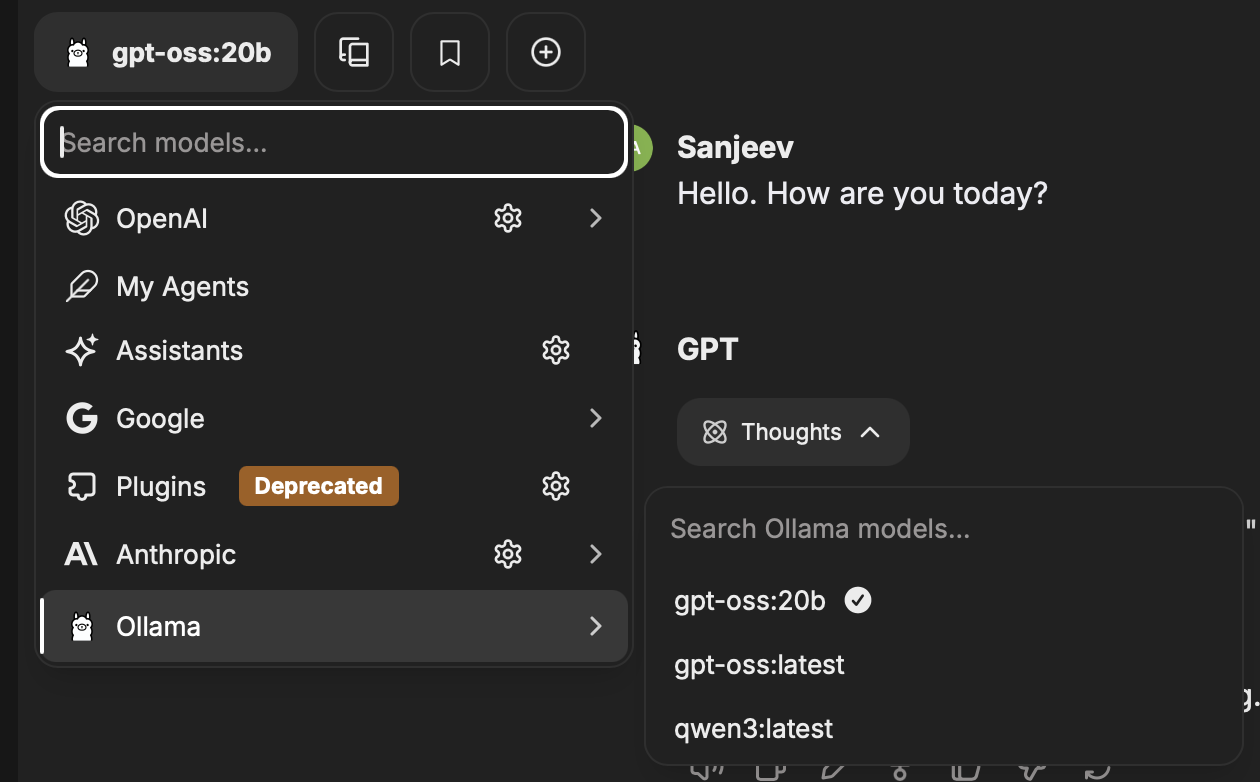
LibreChat supports using multiple models in a single chat thread. You have the flexibility to switch models in the middle of a conversation. This capability allows you to combine outputs from different models, each providing unique responses.
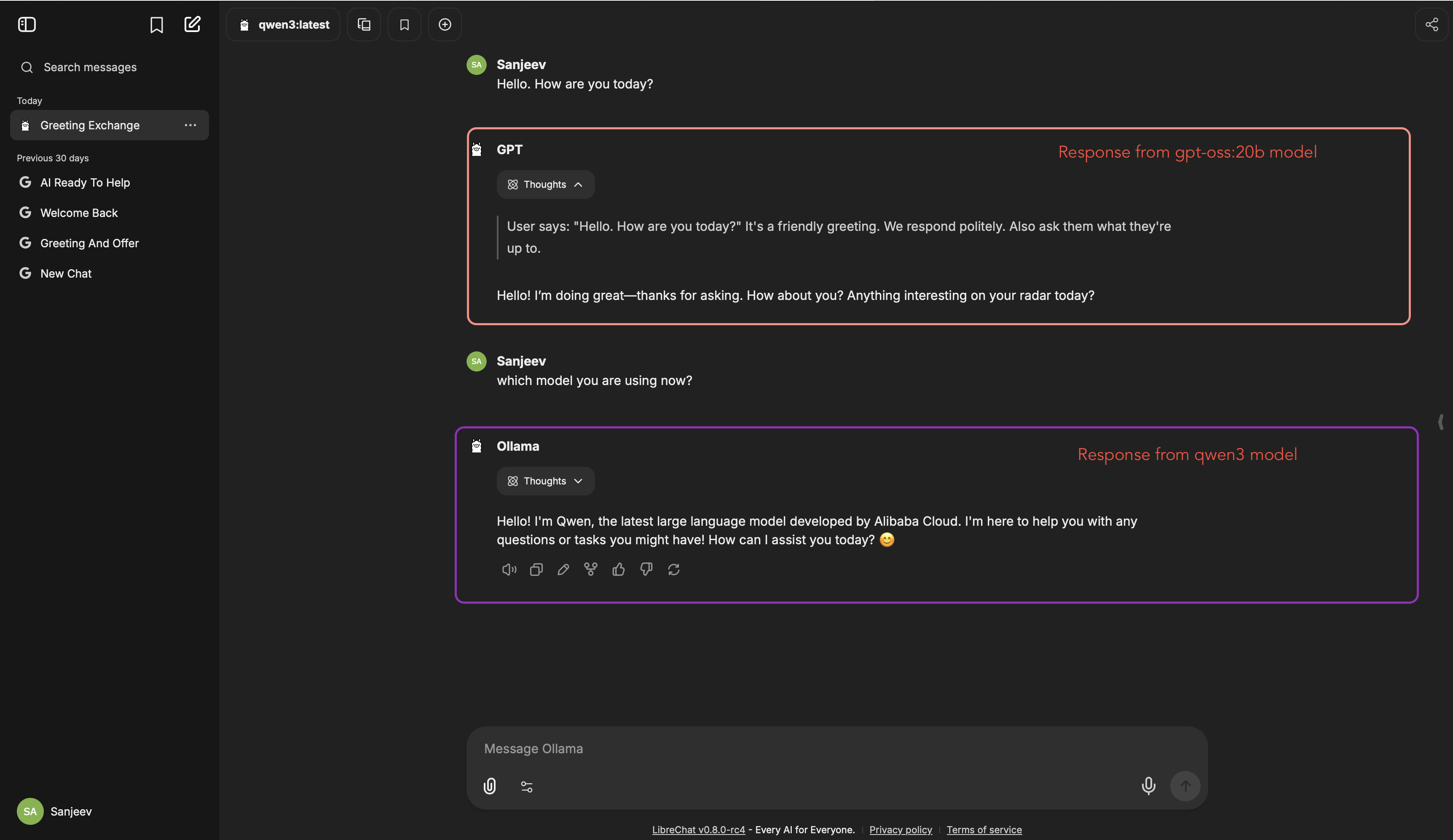
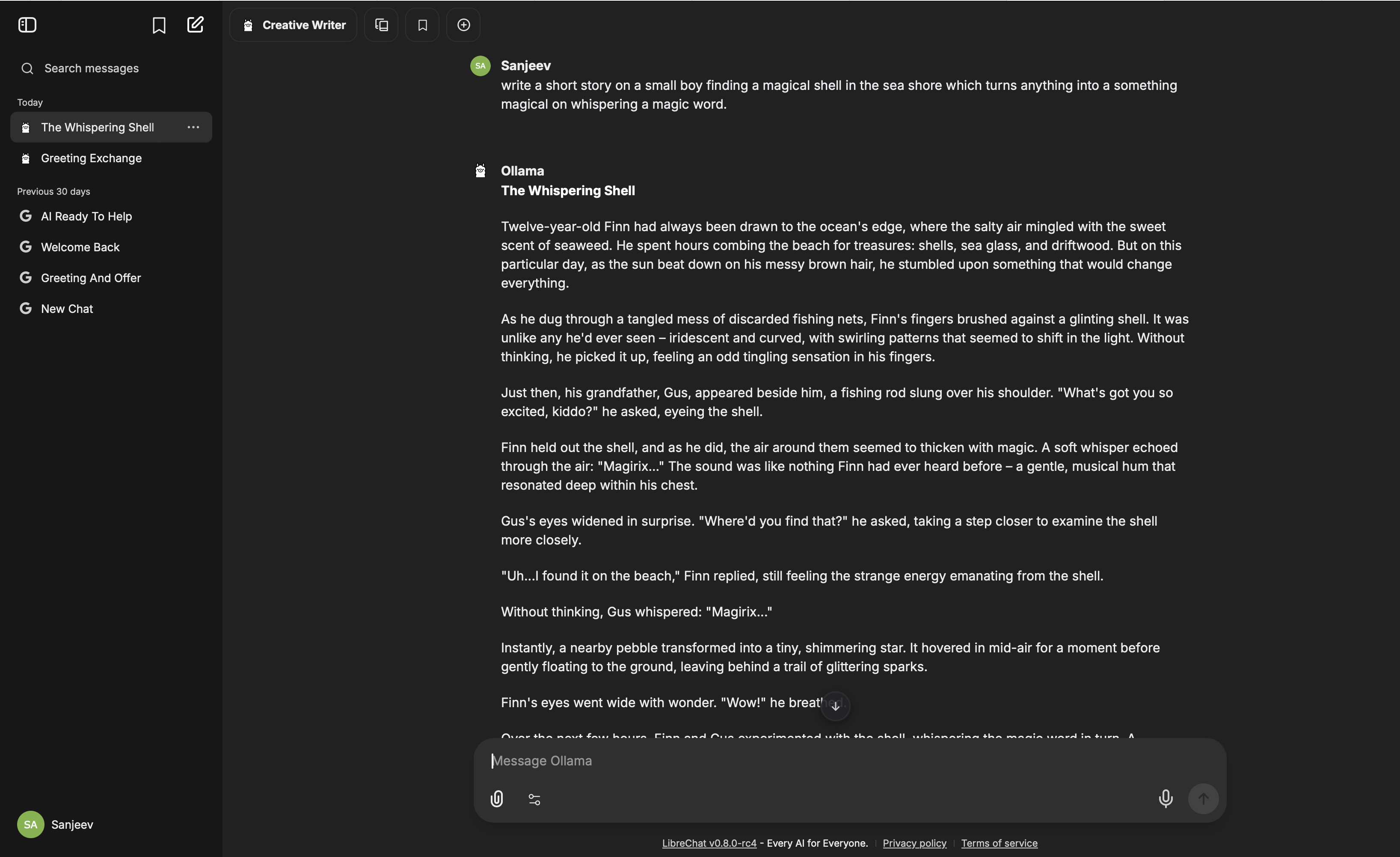
You can create multiple presets as part of the model specs based on your requirement. Here is a sample output for "Creative Writer"
Step 7: Test Advanced Features
Test File Upload: (For models with multi-modal capabilities)
Click the paperclip icon
Upload a text file or image
Ask the model to analyze it
Test Model Switching:
Click the model dropdown
Switch between your configured models
Notice how each responds differently
Test Presets:
Click the presets dropdown
Select "Code Reviewer"
Paste some code and see the focused analysis
Advanced Configuration Options
Memory and Performance
endpoints:
  custom:
    - name: "Ollama"
      # ... other config
      addParams:
        # Adjust based on your hardware
        num_ctx: 4096      # Context window
        num_predict: 1024   # Max response length
        num_gpu: 1         # Use GPU if available
        num_thread: 8      # CPU threads to use
Custom System Prompts
systemPrompts:
  - name: "Helpful Assistant"
    prompt: "You are a helpful, accurate, and honest AI assistant. Always strive to be informative while being concise."

  - name: "Code Expert"
    prompt: "You are an expert programmer with deep knowledge across multiple languages. Focus on clean, efficient, and secure code."

  - name: "Research Assistant"
    prompt: "You are a thorough research assistant. Always cite sources when possible and present balanced viewpoints."
If Something Goes Wrong
Models not showing up:
Check Ollama is running:
ollama serveVerify your
librechat.yamlsyntaxRestart LibreChat:
docker compose restart
File uploads failing:
Check file size limits in config
Verify supported file types
Make sure you have enough disk space
Slow responses:
Reduce
max_tokensin configLower
num_ctx(context window)Close other applications
Connection errors:
Check Ollama URL:
http://localhost:11434Make sure Docker can reach host: use
host.docker.internal:11434on Mac/Windows
Performance Tuning
For better speed:
addParams:
  temperature: 0.7
  top_p: 0.9
  max_tokens: 1024    # Shorter responses
  num_ctx: 2048       # Smaller context
For better quality:
addParams:
  temperature: 0.3     # More focused
  top_p: 0.8          # Less random
  max_tokens: 4096     # Longer responses
  num_ctx: 8192       # More context
Useful Features
Conversation Templates: Create templates for common tasks like "Debug this code" or "Summarize this document"
Model Comparison: Open multiple chats with different models to compare responses
Batch Processing: Upload multiple files and process them with different models
Export Options: Export conversations as PDF, markdown, or JSON
What Now?
You have a complete offline AI system with:
Professional web interface
File upload and analysis
Multiple specialized models
Advanced configuration options
Full privacy and control
Try these workflows:
Upload code files for review
Analyze documents and PDFs
Switch models based on task type
Create custom prompts for your needs
Configuration Examples
Find more examples and templates at:
LibreChat docs: librechat.ai/docs
Ollama models: ollama.com/library
Community configs: github.com/danny-avila/LibreChat
Get Help
LibreChat Discord: discord.gg/librechat
Ollama Discord: discord.gg/ollama
Configuration docs: librechat.ai/docs/configuration
Next: Building custom AI agents that work completely offline with function calling and tool use.